How to connect smart devices without overwhelming your network
To connect smart devices without overwhelming your network, add them in batches, place them on the right Wi-Fi band or guest network, update firmware, use strong passwords, and watch for congestion before adding more. The goal is a smart home that stays reliable, not a crowded network that fails at busy times.
Setup shortcut: start with the router, not the gadget. Confirm Wi-Fi coverage, create a guest or IoT network when possible, update the router, then add smart devices by room or function instead of all at once.
Start with the router and Wi-Fi layout
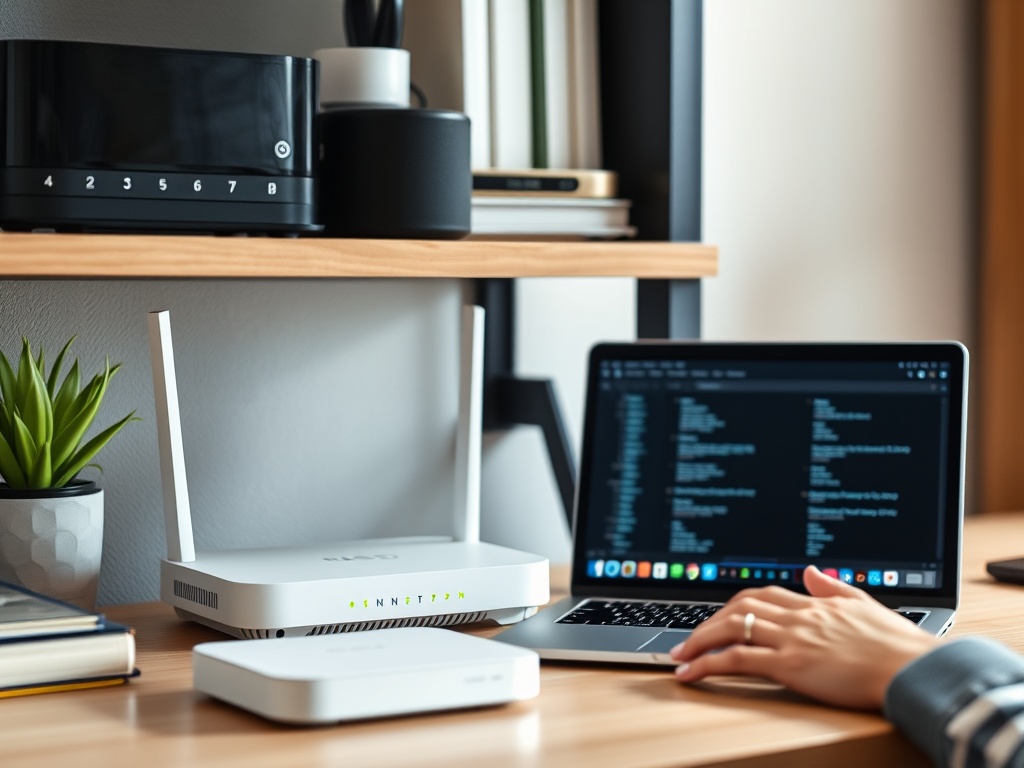
Smart plugs, cameras, speakers, thermostats, bulbs, hubs, and sensors all depend on your network. If the router is old, poorly placed, or overloaded, adding more devices will only expose the weakness. Place the router in an open central location, avoid hiding it behind metal or thick walls, and use mesh or access points when coverage is genuinely poor.
CISA's home Wi-Fi guidance recommends changing default router credentials, updating firmware, and using guest Wi-Fi for smart home or IoT devices when internet access is all they need. That advice from CISA's securing your home Wi-Fi module is practical because many smart devices need cloud access but do not need full access to laptops, phones, or work files.
Use the right network for the right device
Many smart devices still prefer 2.4 GHz Wi-Fi because it travels farther and handles walls better, while phones and laptops often benefit from 5 GHz or 6 GHz bands for speed. Do not force every device onto the fastest-looking network name. A smart bulb across the house may be more stable on 2.4 GHz. A laptop used for video calls may need a cleaner, faster band.
If your router supports a separate guest network or IoT network, use it for devices that only need internet access. Keep computers, phones, backup drives, and work devices on the private network. This separation is not magic security, but it reduces unnecessary exposure if a low-cost gadget has weak software or stops receiving updates.
Add devices in batches, not in a rush
A common mistake is installing every smart device in one evening. That makes troubleshooting hard because you cannot tell which device caused a slowdown, app conflict, or signal problem. Add devices by category: lights first, then speakers, then cameras, then appliances. After each batch, test streaming, video calls, file syncing, and ordinary browsing.
This staged approach also helps families and small teams set rules. If you are reviewing safer household defaults, pair this setup with a family internet safety checklist. The security conversation is easier when the network structure is already organized.
Smart network setup checklist
1. Update router firmware and change the default admin password.
2. Create clear Wi-Fi names for private, guest, or IoT networks if your router supports them.
3. Use strong, unique passwords for device accounts and enable multi-factor authentication where available.
4. Add devices in small groups and test the network after each group.
5. Disable features you do not use, such as remote access, microphones, cameras, or location sharing when optional.
6. Keep a simple inventory with device name, room, app, account owner, and last update date.
| Device type | Network priority | Setup note |
|---|---|---|
| Security camera | Stable signal and updates | Avoid weak corners; review storage and privacy settings. |
| Smart speaker | Account security | Check microphone, purchase, and voice profile settings. |
| Smart bulb or plug | 2.4 GHz reach | Group by room and label clearly in the app. |
| Work laptop | Private network speed | Keep separate from guest or IoT-only devices. |
Watch for signs of overload
A network can be overwhelmed by bandwidth, weak coverage, device count, router memory, or bad app behavior. Symptoms include camera feeds dropping, speakers lagging, lights responding slowly, video calls freezing, or phones switching to mobile data. Do not assume faster internet service will fix everything. If the router is the bottleneck or devices are far from coverage, more bandwidth from the provider may not solve the problem.
CISA's overview of home network security highlights that home networks connect routers, computers, phones, and Wi-Fi-enabled devices. That mix is why organization matters. A router is not just a pipe to the internet; it is the hub connecting devices that may have very different security and performance needs.
When to escalate beyond basic setup
Get help or upgrade equipment when coverage gaps remain after good placement, when the router no longer receives updates, when you need VLAN-style separation for work, or when security cameras overload uploads. A newer mesh system or business-grade access point may be more useful than adding another extender. For renters or small homes, simpler changes such as router placement, guest Wi-Fi, and fewer always-on cameras may be enough.
Device reliability also depends on power and maintenance. If phones or laptops control your smart home apps, basic battery health habits help keep setup and troubleshooting tools available when needed.
Bandwidth is only one piece of performance. Latency, upload speed, signal quality, router processor limits, and app cloud delays can all affect smart devices. Cameras are a common stress test because they may upload video continuously or trigger cloud processing. If camera feeds are unreliable, reduce resolution, shorten recording windows, improve placement, or move the camera closer to stronger coverage before upgrading the entire internet plan.
Name devices clearly as you add them. 'Lamp 1' is fine on day one, but it becomes frustrating after you add six rooms. Use names that include room and function, such as Hallway Sensor or Kitchen Counter Plug. Clear names make voice commands, automation rules, troubleshooting, and account cleanup much easier later.
Keep automation rules conservative until the network proves stable. A single smart plug schedule is easy to test; a chain of routines involving lights, locks, sensors, speakers, and cameras is harder to debug. Build automations after device names, rooms, and network placement are already dependable.
Keep the network simple as it grows
A smart home should reduce friction, not create a second job. Start with router health, separate devices when possible, add gadgets slowly, and keep a device list. The more connected your home becomes, the more valuable simple documentation becomes. A clear network today makes upgrades, resets, and safety reviews much easier later.
For site owners and creators, the same infrastructure discipline supports publishing and troubleshooting. If your pages are not visible in search, understanding Google indexing vs ranking is easier when your own connection is stable enough to test and monitor changes reliably.